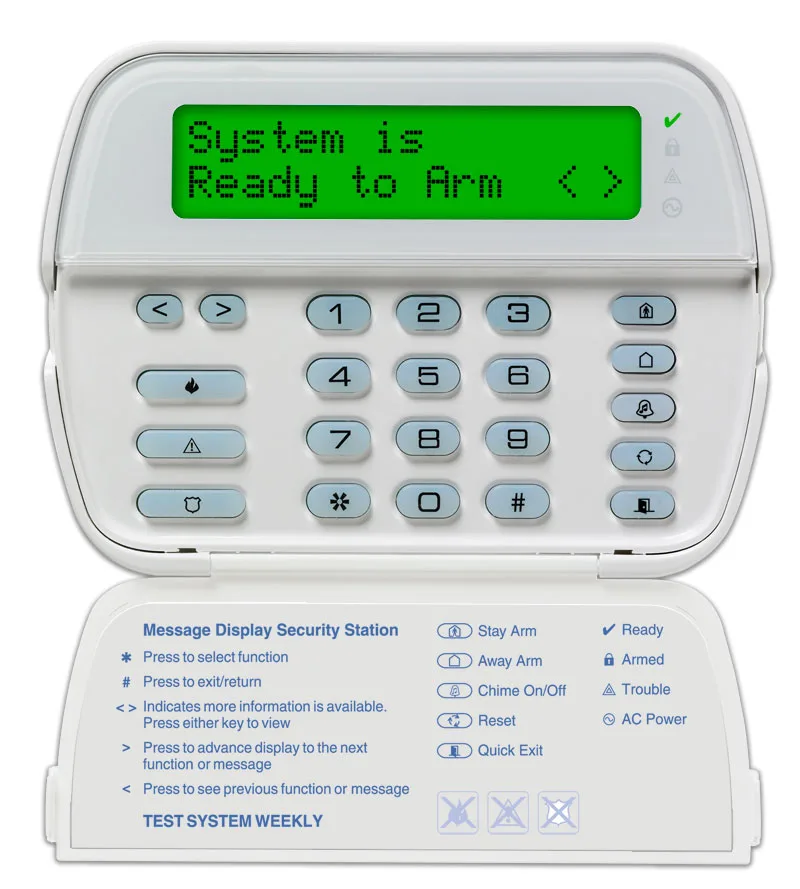
How to Adjust User Settings on a DSC 1616 Alarm System

DSC 1616 User Settings Programming Guide

This guide covers common user-level settings on DSC PowerSeries PC1616 systems, including keypad brightness, contrast, chime, keypad beeps, time/date, and user codes. Menu flow varies slightly by keypad type.

Enter User Functions

* 6 Master Code

LCD keypads (PK5500/LCD5500) show menu items on-screen. Use < and > to move through options, then press * to select. Press # to exit. LED/Icon keypads usually have fewer prompts and often use the > key to cycle through levels.

Common Commands

Command What it’s for
* 6 User Functions (brightness, contrast, buzzer level, time/date, tests)
* 5 Program user codes (add/change/delete)
Dsc 1616 alarm keypad

How To Set the Time and Date on a DSC 1616 Alarm System

Fix the “Loss of Time & Date” trouble and keep event logs accurate.

  1. Disarm the system if it’s armed.
  2. Press *6 and enter your Master Code.
  3. Select Time and Date:
    • On many keypads, press 1 for Time and Date.
    • On LCD keypads, you may need to use < / > to find “Time and Date” and press *.
  4. Enter time in 24-hour format (HHMM), then enter date (MMDDYY).
  5. Press # to exit.

How To Lower Keypad Brightness on a DSC 1616

Best fix for a keypad that’s too bright at night.

  1. Press *6 and enter your Master Code.
  2. Find Brightness Control:
    • LCD (PK5500/LCD5500): use < / > to locate “Brightness Control,” then press *.
    • LED/Icon (PK5501/PK5508/PK5516): use the > key to cycle through backlight levels.
  3. Set your preferred level, then press # to exit.
Brightness levels differ by keypad type. LCD keypads typically offer more steps; LED/Icon keypads commonly cycle through 4 levels, and level 0 disables backlighting.

How To Adjust LCD Contrast on a DSC 1616 Keypad

If the screen text looks faded or too dark, adjust contrast (not brightness).

  1. Press *6 and enter your Master Code.
  2. Use < / > to find Contrast Control (LCD keypads only).
  3. Press * and adjust using the scroll keys until it’s readable.
  4. Press # to exit.

How To Change Keypad Beep Volume on a DSC 1616

Controls keypad beeps and tones (this does not change siren volume).

  1. Press *6 and enter your Master Code.
  2. Find Buzzer Control (sometimes shown as “Buzzer Level”).
  3. Adjust the level:
    • LCD (PK5500/LCD5500): use < / > to pick a level (00 often disables keypad buzzer).
    • LED/Icon (PK5501/PK5508/PK5516): use > to cycle through levels.
  4. Press # to exit (the level usually saves automatically on exit).

How To Turn Door Chime On or Off on a DSC 1616

Stops the system from beeping when doors/windows open while disarmed.

  1. Look for a keypad button labeled Chime.
  2. Press and hold the Chime function key for about 2 seconds to toggle ON/OFF.
Some installations also support a menu-based chime toggle, but the hold-to-toggle method is the most common homeowner workflow.

How To Add, Change, or Delete User Codes on a DSC 1616

Use this when you need to give someone access or remove an old code.

User codes are typically programmed from * 5 using the Master Code. Keep the system disarmed while editing codes.

Add or change a user code

  1. Press *5.
  2. Enter your Master Code.
  3. Select a user slot (commonly a 2-digit number like 02, 03, 04).
  4. Enter the new 4-digit code when prompted.
  5. Press # to exit.

Delete a user code

  1. Press *5.
  2. Enter your Master Code.
  3. Select the user slot you want to remove.
  4. Follow the keypad prompt to erase/delete the code (prompt flow varies by keypad model).
  5. Press # to exit.
If your keypad is an LCD model, you may see a list of code slots and use the scroll keys to pick one before editing. If you don’t see the option you expect, it may be a keypad/model prompt difference rather than a panel problem.